QuickBooks add ons: Expense management integrations and which ones sync
QuickBooks can already scan a receipt, match it to a card transaction, and sort it into the right category. What it doesn't do much of is the human part of expenses, like getting every cardholder to send in their receipts, routing a report through a manager and then finance, and checking spending against policy before it's paid.
QuickBooks add ons, like expense management integrations, take over that work. The main options that connect to QuickBooks Online are BILL Spend & Expense, Ramp, Airwallex, Zoho Expense, SAP Concur, and Expensify.
They all connect, so compare them on which QuickBooks records each one reads and writes back, such as classes, locations, customers, taxes, and items. If a financial management tool skips a record your books depend on, someone ends up fixing every export by hand, every month.
Key takeaways
- QuickBooks expense add-ons differ most in what they sync back to your books, more than in their feature lists.
- The Federal Reserve's 2026 Report on Employer Firms found that 77% of small employer firms reported rising costs, tariff-related cost increases, or both.
- Expensify syncs your chart of accounts, classes, locations, customers and projects, taxes, and items with QuickBooks Online.
- QuickBooks records the transaction, and an add-on earns its keep on everything that happens before that, like receipts, approvals, and reimbursements.
- Check which QuickBooks records a tool writes back before you shortlist it on price.
What QuickBooks handles natively, and where it stops
QuickBooks Online already covers more expense tracking than many people expect, and for a lot of small teams, the built-in QuickBooks expense tracking app is enough.
On its own, QuickBooks lets you snap receipts in the mobile app and match them to existing transactions, set rules that categorize expenses automatically, and track mileage.
If you also run QuickBooks Payroll, employees can submit reimbursement requests with receipts through QuickBooks Workforce, and the employer approves or rejects them.
Cost pressure makes the work before the ledger matter more. The Federal Reserve's 2026 Report on Employer Firms found that 77% of responding small employer firms reported rising costs, tariff-related cost increases, or both.
Teams usually go looking for an add-on when a few of these (or more) start happening every month:
Finance is chasing receipts from cardholders instead of reviewing them.
Approvals need more than one step, like a manager and then finance.
Nobody checks expenses against an expense policy until after they're paid.
Reimbursements are paid by hand, outside QuickBooks.
Card transactions from several employees have to be matched to receipts one at a time.
The Expensify QuickBooks integration and the other tools below all take on that work and then hand clean, coded transactions to QuickBooks.
The QuickBooks expense add-ons finance teams use
These six expense tools come up most often when finance teams compare QuickBooks Online apps. BILL, Ramp, and Airwallex issue their own cards, while Zoho Expense, SAP Concur, and Expensify work with the cards you already have.
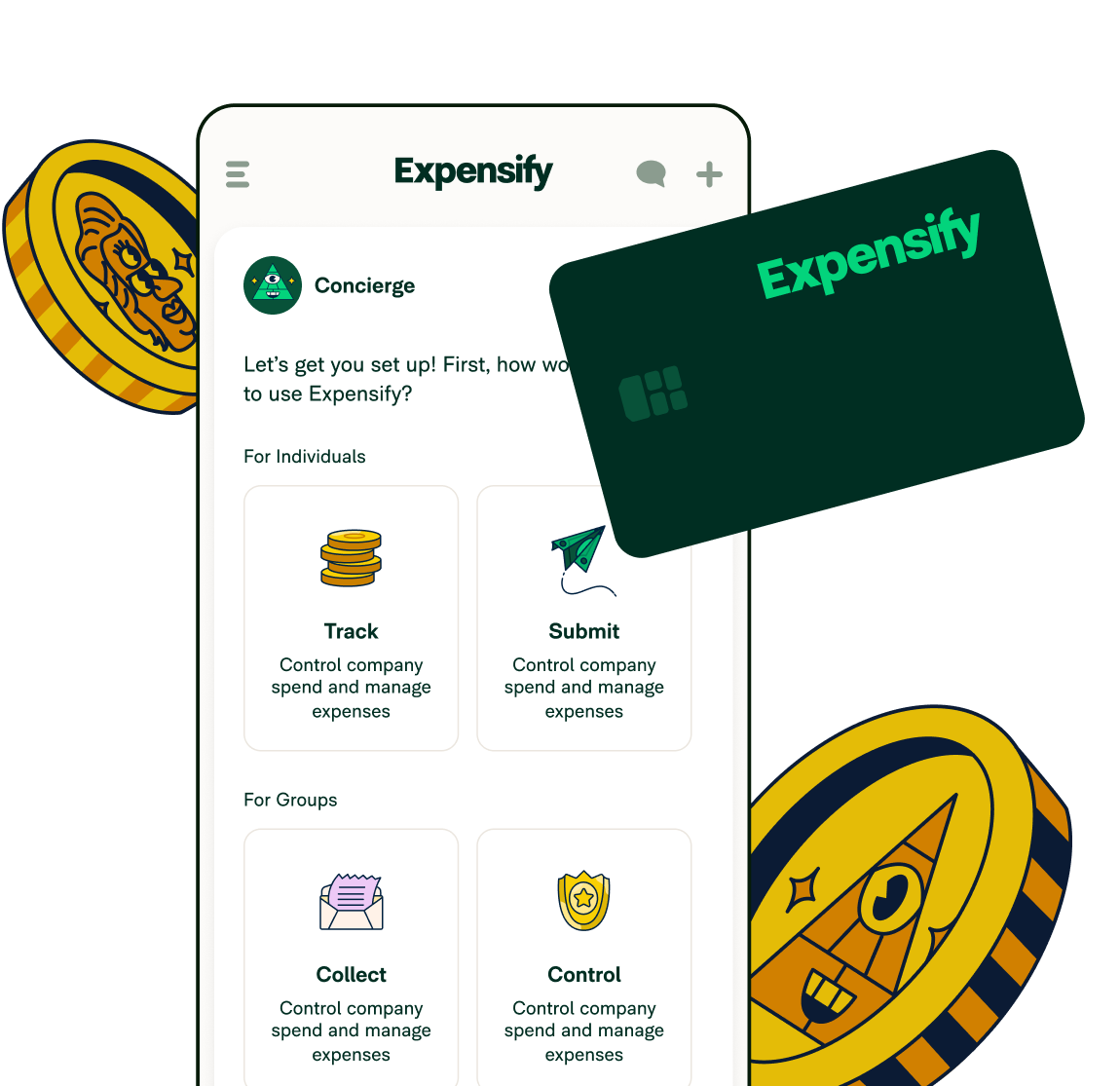
Expensify does both. It offers its own card, the Expensify Visa® Commercial Card, but using it is optional. Or, you can go with the Bring Your Own Cards (BYOC) option and import the cards you already have from 10,000+ banks.
Where a vendor's documentation doesn't mention a record, it's listed as not published. That doesn't always mean the tool can't do it, so ask the vendor before you rule it out.
Expensify
What it's best known for. Expensify handles receipts, approvals, reimbursements, and card reconciliation in one place. SmartScan reads each receipt the moment it's snapped. Reimbursements sync both ways, so a bill marked as paid in QuickBooks Online also marks the report as reimbursed in Expensify.
QuickBooks records it syncs. Your chart of accounts, classes, locations, customers and projects, tax rates, and items. Classes, customers, and locations can apply to each expense or to a whole report.
Who it suits. Growing teams that want expense work off the finance team's plate and a clean handoff to QuickBooks.
Main limitation. With multicurrency on, vendor bills export in the vendor's currency, and QuickBooks doesn't apply conversion rates, so exchange rates may need adjusting after export. QuickBooks Desktop needs the Control plan.
BILL Spend & Expense
What it's best known for. BILL Spend & Expense is free per user because it's built around the BILL Divvy Card and its credit line. BILL Travel is bundled in at no extra cost.
QuickBooks records it syncs. BILL says your QuickBooks chart of accounts, vendors, classes, locations, and customers import automatically. Taxes and items aren't listed on BILL's public product pages.
Who it suits. Teams that are happy to move company spending onto BILL's card, especially if they already use BILL for paying vendor bills.
Main limitation. The free price is tied to the Divvy Card, so it's a better fit for teams willing to switch cards than for teams keeping the ones they have.
Ramp
What it's best known for. Ramp's free plan includes corporate cards, expenses, bill pay, and travel booking. It issues its own cards, and it can also reimburse spending on other cards.
QuickBooks records it syncs. Ramp's help center lists accounts and categories, classes, locations, and customers, with QuickBooks Projects syncing as customers or jobs. Taxes and items aren't documented.
Who it suits. US teams that want a free card program connected to QuickBooks Online or Xero.
Main limitation. Ramp says it only syncs transactions to QuickBooks Online in US dollars. The QuickBooks Desktop integration and custom fields both need Ramp Plus, which costs $15 per user per month, plus an undisclosed platform fee.
Airwallex
What it's best known for. Airwallex is a business account for holding and paying out in multiple currencies, with cards and expense tools built on top. Its free Explore plan covers up to ten Spend users.
QuickBooks records it syncs. Airwallex's help center lists your chart of accounts, classes, locations, tax rates, and vendors. Customers, projects, and items aren't documented.
Who it suits. Teams paying suppliers or employees in several currencies who want those transactions to land in matching QuickBooks currency accounts.
Main limitation. Its documentation covers QuickBooks Online only, with nothing on QuickBooks Desktop. Currency conversion carries a 0.5% markup for major currencies and 1% for others on every plan.
Zoho Expense
What it's best known for. Zoho Expense is one of the lowest-cost paid options, and its free plan covers up to three users. It fits neatly alongside other Zoho apps.
QuickBooks records it syncs. Zoho documents the most detail of any tool here. Expense accounts import as categories, classes as tags, locations as a report field, customers as customers, and QuickBooks jobs as projects, while taxes are mapped between the two systems. Items aren't documented.
Who it suits. Small teams that want structured expense reports at a low price.
Main limitation. Zoho requires both organizations to use the same accounting currency. On QuickBooks Online Simple Start, reimbursable expenses can only export as journal entries, and QuickBooks Desktop needs Zoho's Premium or Enterprise plan.
SAP Concur
What it's best known for. SAP Concur prices per expense report rather than per user, starting at $7 per report on Base and $11 on Plus, with unlimited users on both.
QuickBooks records it syncs. Concur's App Center listing says the integration pulls in GL accounts, vendors, classes, customers, and location lists. Taxes and items aren't documented there.
Who it suits. Teams with many occasional submitters, where per-report pricing costs less than paying for every user.
Main limitation. The QuickBooks listing names Concur Expense Standard as the compatible edition, so check with SAP which current plan includes it. QuickBooks Online support covers the US, UK, and Australia.
| Expensify | BILL Spend & Expense | Ramp | Airwallex | Zoho Expense | SAP Concur | |
|---|---|---|---|---|---|---|
| Chart of accounts | Yes | Yes | Yes | Yes | Yes | Yes |
| Classes | Yes | Yes | Yes | Yes | Yes | Yes |
| Locations | Yes | Yes | Yes | Yes | Yes | Yes |
| Customers and projects | Yes | Customers | Yes | Not published | Yes | Customers |
| Taxes | Yes | Not published | Not published | Yes (tax rates) | Mapped | Not published |
| Items | Yes | Not published | Not published | Not published | Not published | Not published |
What syncs back to QuickBooks
When an add-on sends an expense to QuickBooks, it also sends details that tell QuickBooks where the expense belongs, like the account, class, or customer it's tied to. If an add-on can't sync one of those details, that part of your reporting comes out wrong or incomplete.
Chart of accounts
Your chart of accounts decides which account every expense posts to, like business travel, meals, or software. Most add-ons import it as their list of expense categories. If the lists drift apart, expenses post to the wrong account or fail to export, which is why a tidy chart of accounts is one of the bookkeeping basics for small businesses to get right first.
Classes
Classes let you split the profit and loss by department, program, or business line. If a tool doesn't map classes, every expense lands unclassified, and someone recodes them in QuickBooks before the month can close.
Locations
Locations track results by office, store, or region. When they're missing, location-level reports undercount spending, and you won't notice until someone asks why one site looks cheap.
Customers and projects
Customers and projects tie an expense to the job it was for, which matters for billable costs and job profitability. Without them, you can't bill expenses back to clients or see what a project really costs.
Taxes
Tax codes and rates tell QuickBooks how much of an expense is reclaimable tax. If they don't map, VAT or GST lands inside the expense amount, and your tax return and expense totals are both off.
Items
Items are the products and services on your QuickBooks list. Some teams code purchases to items instead of accounts, and if the add-on can't read them, those expenses need recoding.
Getting these right is also what lets corporate card reconciliation run automatically, and it's why expense reports arrive in QuickBooks ready to post.
How the setup works
Most QuickBooks integrations follow the same three steps, whichever tool you pick.
Prepare your records in QuickBooks. Clean up the chart of accounts, and turn on class tracking, location tracking, or multicurrency if you use them. The add-on can only import what's already switched on.
Authorize the connection. A QuickBooks admin signs in from the expense tool and approves access. The tool then imports your accounts, classes, and other lists.
Configure and check the first export. Choose how expenses export, such as bills, journal entries, or credit card expenses. Then send one real report through and confirm it landed in QuickBooks with the right accounts and amounts.
How to choose between them
Lists of the best QuickBooks apps rarely agree, because the right pick changes with how your company is set up. Here are a few questions to ask that may help to narrow the list quickly.
How many entities do you run? Each QuickBooks company is its own connection, so check how a tool handles several companies before you commit.
Do you want new cards, or to keep your own? Card-issuing tools work best when you move spending onto their card. Tools that import cards let you keep the ones you have.
Which QuickBooks records do your books depend on? If you report by class, location, or project, compare the sync lists above before you compare prices.
Is travel part of it? Some tools bundle travel booking, while others leave it to a separate provider.
Automation is a feature that’s high on most finance leaders' lists. Deloitte's Q4 2025 CFO Signals survey of 200 finance chiefs found that 49% said automating processes to free up employees for higher-value work was their top priority for finance talent. The best tool for your team is the one that takes the most repetitive work off it without leaving discrepancies in QuickBooks.

Where Expensify fits
Expensify has worked alongside QuickBooks for years. Intuit's Firm of the Future site describes Expensify as a long-time Intuit partner invited into the Intuit Developer Growth Program, and says it "helps more than 15 million people around the world track expenses, book travel, reimburse employees, manage corporate cards, send invoices, and pay bills."
All six records sync. Chart of accounts, classes, locations, customers and projects, tax rates, and items all come across from QuickBooks Online.
Both versions of QuickBooks are supported. QuickBooks Online connects on the Collect plan, which is a flat $5 per member per month. QuickBooks Desktop connects on the Control plan and supports the latest three US and Canada versions on Windows. QuickBooks Self-Employed isn't supported.
Payments stay in sync. Reimbursements paid through Expensify are marked as paid in QuickBooks Online, and bills marked as paid in QuickBooks Online mark reports as reimbursed in Expensify.
Expensify's expense management is built to be fast and easy for employees and clean for the books. If you use other accounting software as well, Expensify connects to NetSuite, Xero, and Sage Intacct.
FAQs about QuickBooks add ons
-
Among the apps that integrate with QuickBooks for expenses, the main ones are BILL Spend & Expense, Ramp, Airwallex, Zoho Expense, SAP Concur, and Expensify.
The biggest difference between them is which QuickBooks records they sync, such as classes, locations, customers and projects, taxes, and items. Expensify syncs al
-
Yes, for the basics. QuickBooks Online captures receipts in its mobile app, categorizes expenses with rules, and tracks mileage, and QuickBooks Payroll customers can take employee reimbursement requests through QuickBooks Workforce.
Teams usually add an expense tool when they need multi-step approvals, policy checks, receipt follow-up, or card reconciliation across many employees.
-
Most expense integrations sync some or all of six QuickBooks records: the chart of accounts, classes, locations, customers and projects, taxes, and items. Each one controls a different part of your reporting, so a missing record usually means recoding expenses by hand in QuickBooks.
-
Yes. Expensify connects to QuickBooks Desktop on the Control plan and supports the latest three US and Canada versions on Windows. QuickBooks Online connects on the Collect plan, and QuickBooks Self-Employed isn't supported.
-
Yes, but support varies by tool. Airwallex documents syncing transactions into matching QuickBooks currency accounts, Ramp syncs to QuickBooks Online in US dollars only, and Zoho Expense requires both systems to use the same accounting currency.
In Expensify, vendor bills export in the vendor's currency, and exchange rates may need adjusting in QuickBooks after export.