Expensify + Cursor
Query Expensify without leaving your editor
Cursor connects to Expensify in a couple of steps, so you can ask about expenses, reports, and invoices right where you're already working.

Key features

Ask in plain English
No filters, no manual expense reports. Ask Cursor a question in natural language, and it pulls the answer straight from your Expensify data.

Connect in a few steps
Add the Expensify MCP server in a few simple steps. You're connected and asking questions in minutes.

Read-only and secure
The connection uses OAuth 2.1, and Cursor gets read-only access at launch. It can search, summarize, and analyze your data, but it can't edit expenses or approve reports. You can disconnect it any time.

Answers scoped to your access
Cursor only sees the Expensify data you have permission to view, based on your account and workspace role.
What can you ask Cursor?
Cursor is built for the way you already work, so you can keep your spending questions in the same place as your code. Here are a few examples to get you started:

What did I spend on software subscriptions last month?

Find my conference and travel expenses from Q1.

Show me any of my expenses that are missing receipts.

Which of my reports are still waiting for approval?

How much have I expensed against my current project this quarter?
These are just examples. Ask Cursor anything about your expenses, reports, reimbursements, invoices, and spending trends.
How it works
You can connect Expensify to Cursor in a few clicks.
-
Find the MCPs section
In Cursor, go to Customize and click the MCPs filter button.
-
Add the Expensify MCP server
Click the + New MCP Server button and paste the Expensify MCP server configuration.
-
Save your changes
Click Authenticate and follow the next steps in your browser to finalize the connection.
-
Category
AI integrations
-
Plan to use
All plans
-
Resources
-
Website
Full setup instructions live at expensify.com/mcp.
Benefits
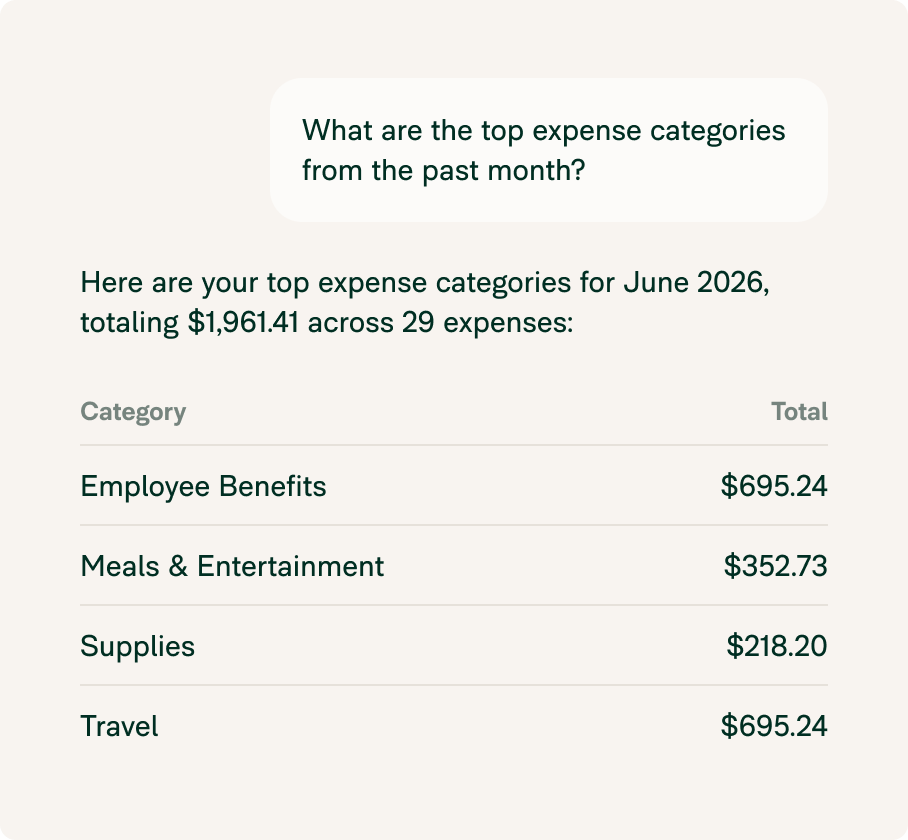
Stay in your flow
Get answers about your spending without leaving your editor or breaking focus on the work that matters.
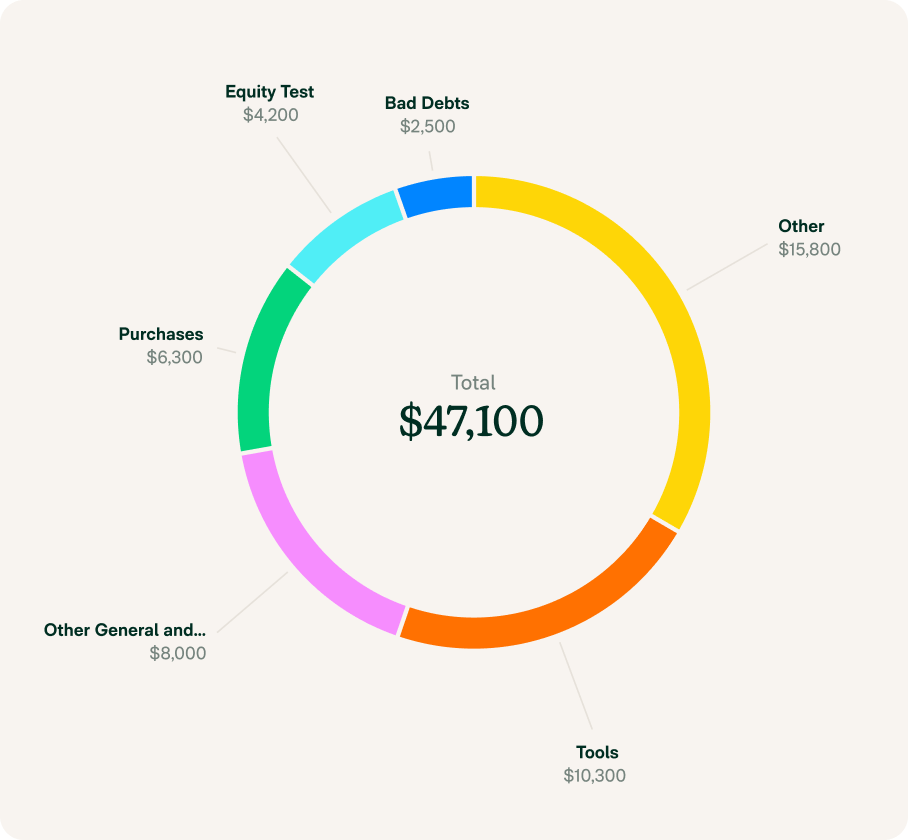
Answers without the busywork
Stop exporting data and rebuilding the same financial reports. Ask the question you actually have, and get the answer in seconds.
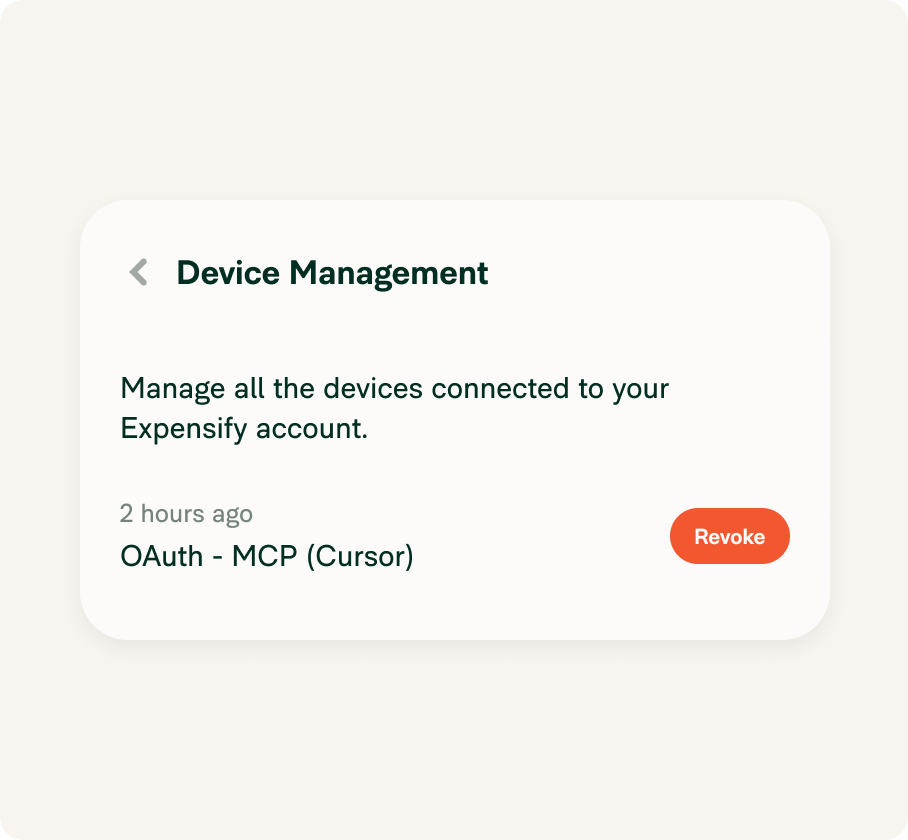
Your data stays yours
Read-only access, explicit consent, and one-click disconnect mean you stay in control of what Cursor can see.
FAQs
-
No. The connection is read-only at launch. Cursor can search, summarize, and analyze your data, but it can't edit expenses, approve reports, reimburse payments, or change workspace settings.
-
Yes. The connection uses OAuth 2.1 with explicit consent. Cursor only accesses the data you already have permission to see, and you can disconnect it any time.
-
Expenses, reports, reimbursements, invoices, merchants, categories, receipts, approvals, and spending trends.
-
Make sure you completed the approval flow in your browser. If it still can't connect, check the server URL, restart Cursor, and reconnect. Check out expensify.com/mcp.
Try Expensify today
Connect Cursor to Expensify and get answers from your expenses the moment you ask.
Try Expensify MCP
Other integrations




Features
Resources

Get Started